Session management
Database driver requirement
Section titled “Database driver requirement”Set SESSION_DRIVER=database to use this kit’s session list and revocation features. This is the default configuration.
Revoking a session invalidates a stored login so it can no longer access authenticated pages. This kit reads a user’s sessions from the database session table and deletes the selected records.
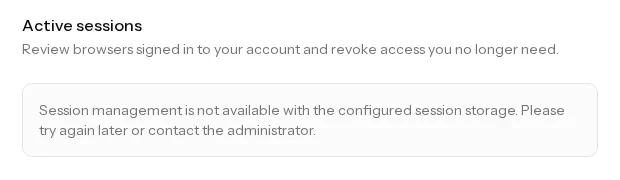
For other drivers, the settings page explains that session management is unavailable and hides the list and revocation controls. The operator command also exits with a driver requirement error.
The following screenshot was captured after switching to SESSION_DRIVER=file, signing in again, and opening /settings/sessions.
With the same configuration, the command below prints the requirement message and exits with code 1 without revoking sessions.
php artisan security:revoke-sessions email:test@example.com --forceSession revocation requires the database session driver.Preparing the session database
Section titled “Preparing the session database”Configure .env:
SESSION_DRIVER=databaseThe initial migration includes the sessions table. Run the migrations during setup.
php artisan migrateBy default, sessions use the application’s default database connection and the sessions table. To change them, set SESSION_CONNECTION and SESSION_TABLE, as read by config/session.php, and create the session table in that location.
If configuration is cached, rebuild it after changing .env.
php artisan config:cacheSwitching drivers does not migrate existing sessions. Users need to sign in again. Revocation in the new backend does not delete sessions left in the previous one.
Listing and revoking sessions in settings
Section titled “Listing and revoking sessions in settings”Open /settings/profile and select “Sessions” from the settings menu.
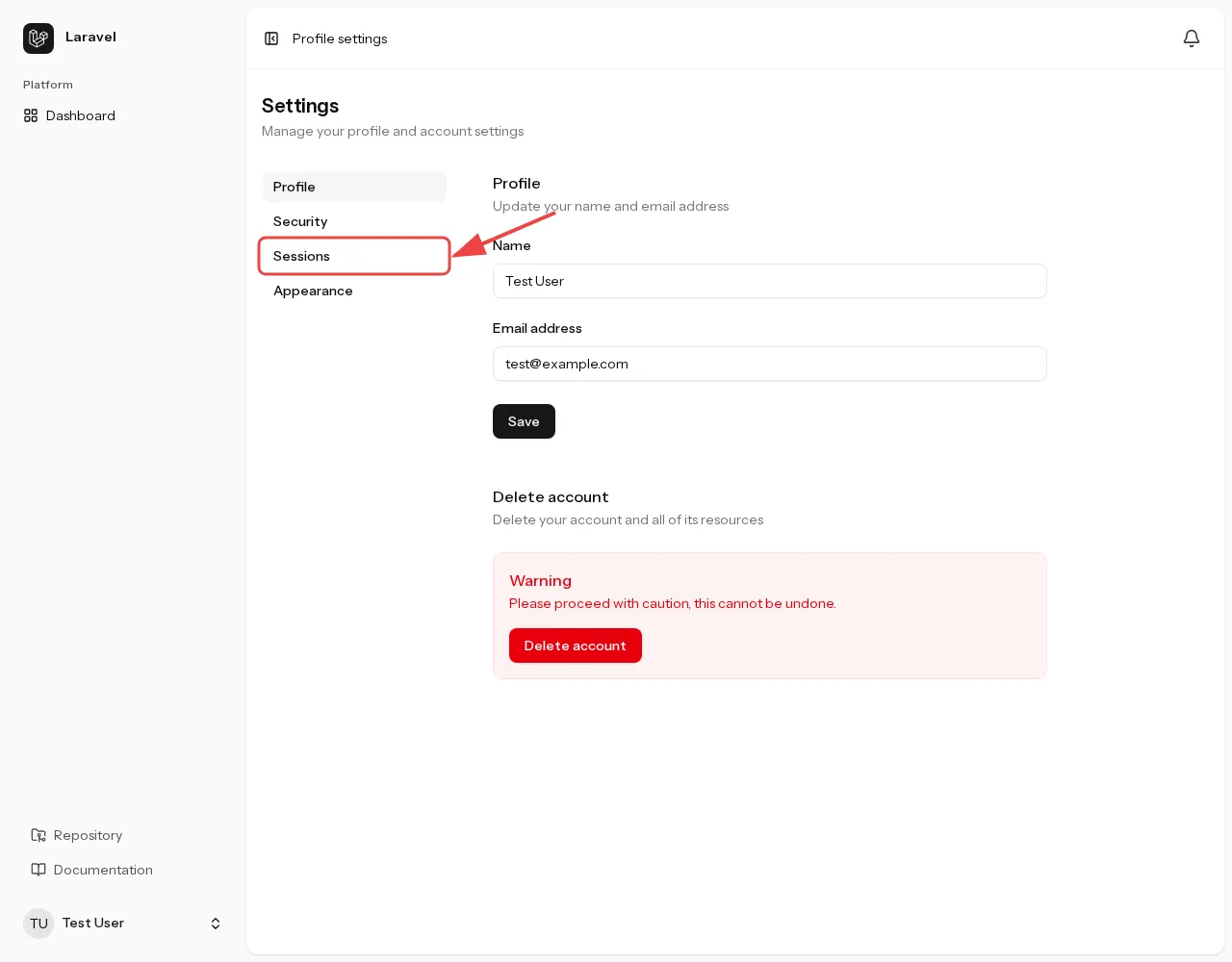
Sessions” in profile settingsIdentity confirmation before opening session management
Section titled “Identity confirmation before opening session management”In addition to being signed in, opening /settings/sessions requires password confirmation. Enter the current “Password” and select “Confirm password”. If a passkey is registered, “Confirm with passkey” is also available.
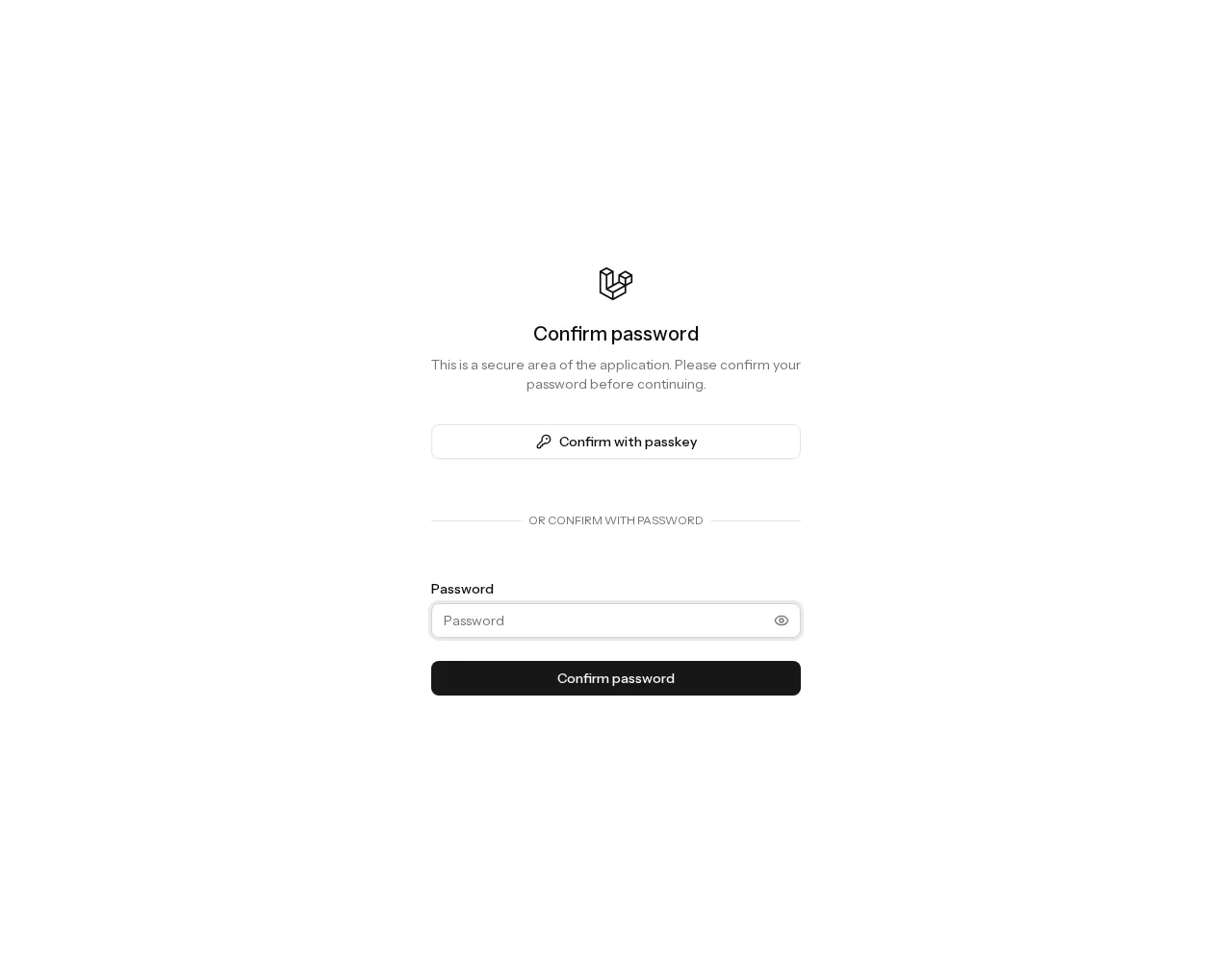
This check makes it harder for someone using a stolen session to inspect session details or sign the account owner out on another device.
Confirmation lasts 15 minutes for session management. Within that window, confirmation is not requested again for each operation. After it expires, the list and revocation operations require another confirmation.
Excluding “Password confirmation” through Chisel also removes the browser session management page.
Reviewing active sessions
Section titled “Reviewing active sessions”After confirmation, “Active sessions” shows the current session and other signed-in sessions. The browser in use is marked “Current session”; other sessions appear under “Other sessions”.
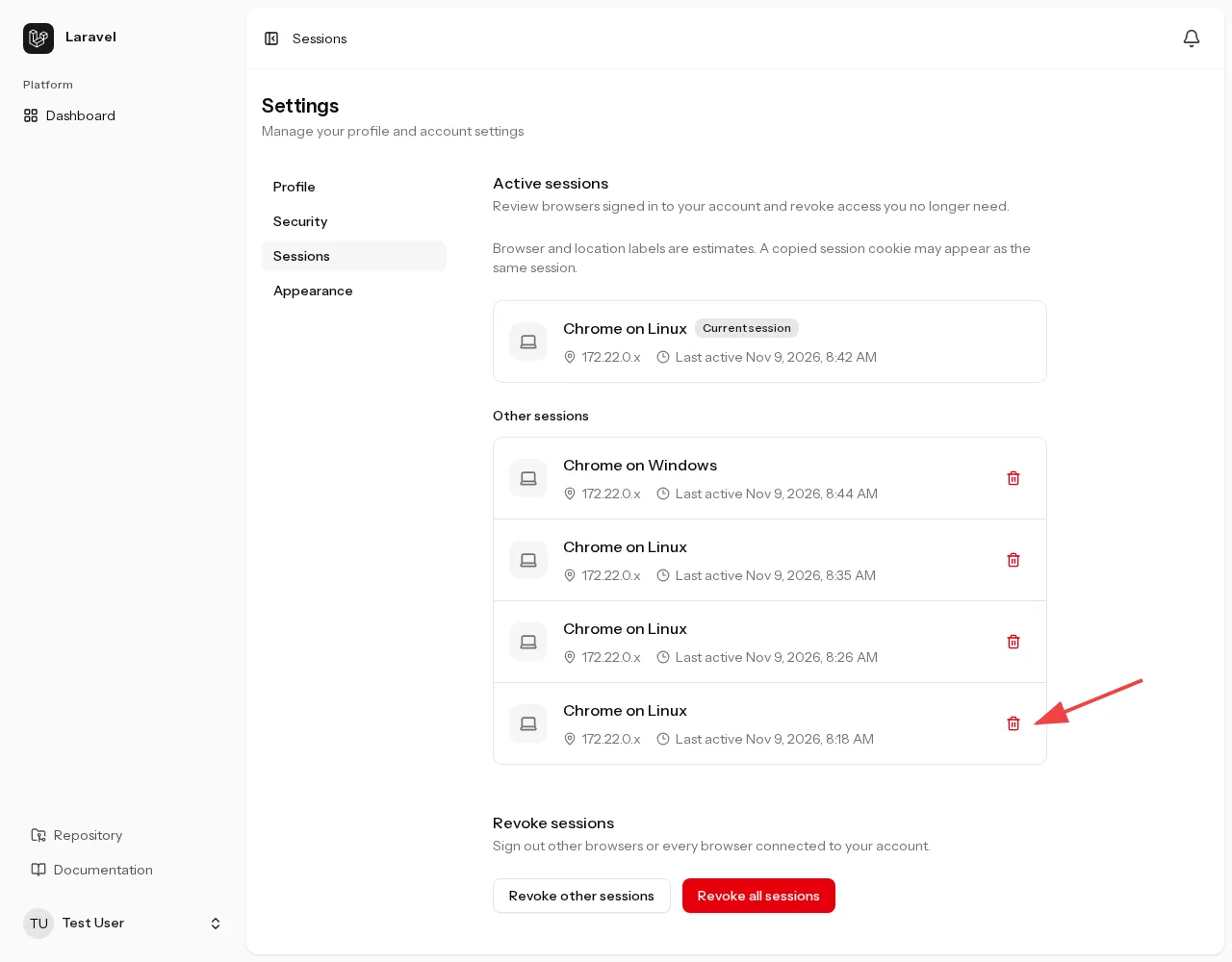
Each entry shows an estimated browser and OS, a masked IP address, and the last activity time. Requests using a copied session cookie can appear as the same session.
The red arrow identifies the session to revoke in the next example.
Revoking one session
Section titled “Revoking one session”Select its trash icon to open “Revoke this session?”.
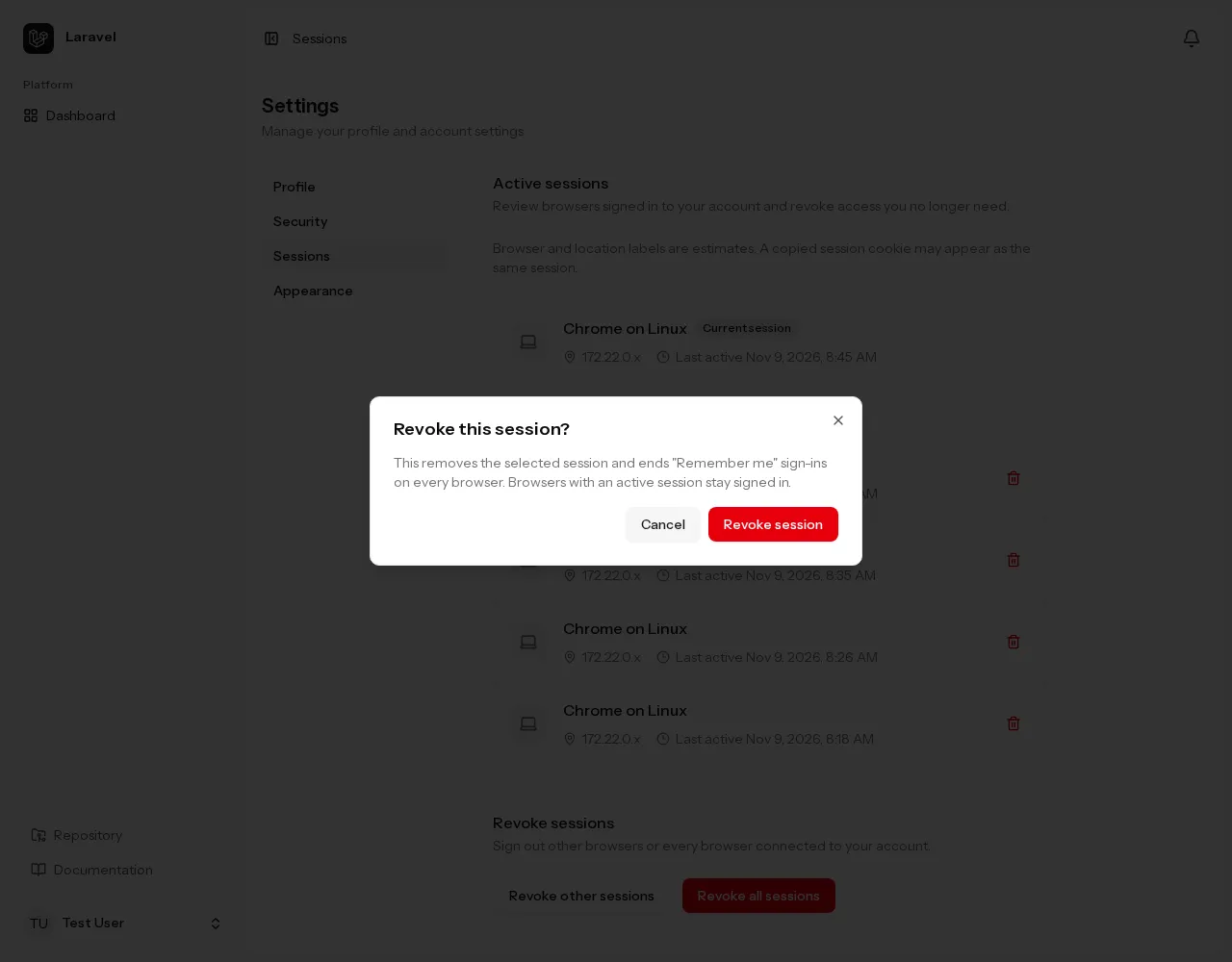
This deletes the selected session and invalidates “Remember me” sign-ins across all browsers. Other active sessions remain signed in.
No second password entry is required while identity confirmation is fresh. Select “Revoke session” to proceed.
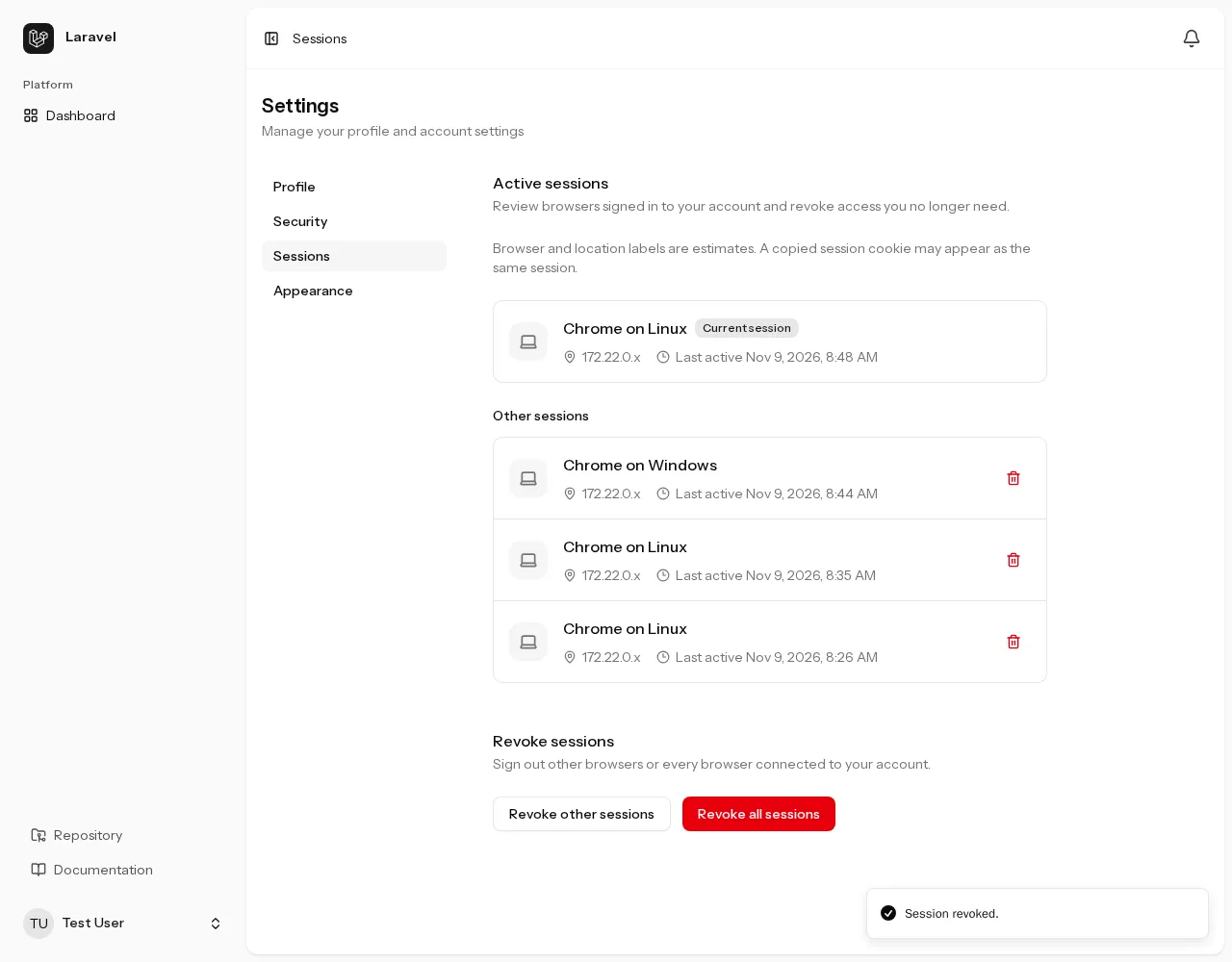
Check for “Session revoked.” and the disappearance of the selected session. The current browser remains signed in.
Revoking other sessions
Section titled “Revoking other sessions”Select “Revoke other sessions” to open “Revoke all other sessions?”.
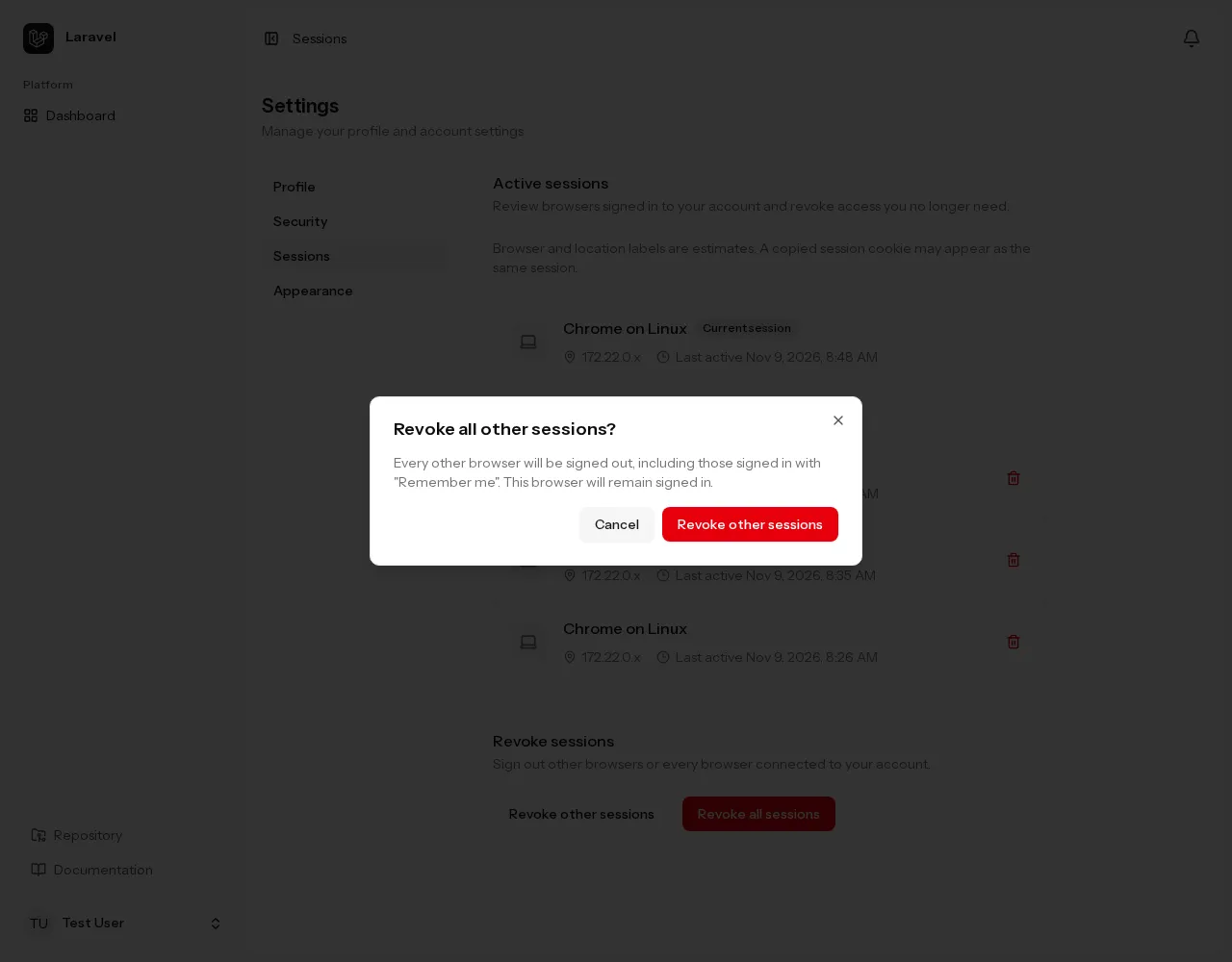
Confirm with “Revoke other sessions”. This keeps the current session, removes the others, and invalidates “Remember me” sign-ins.
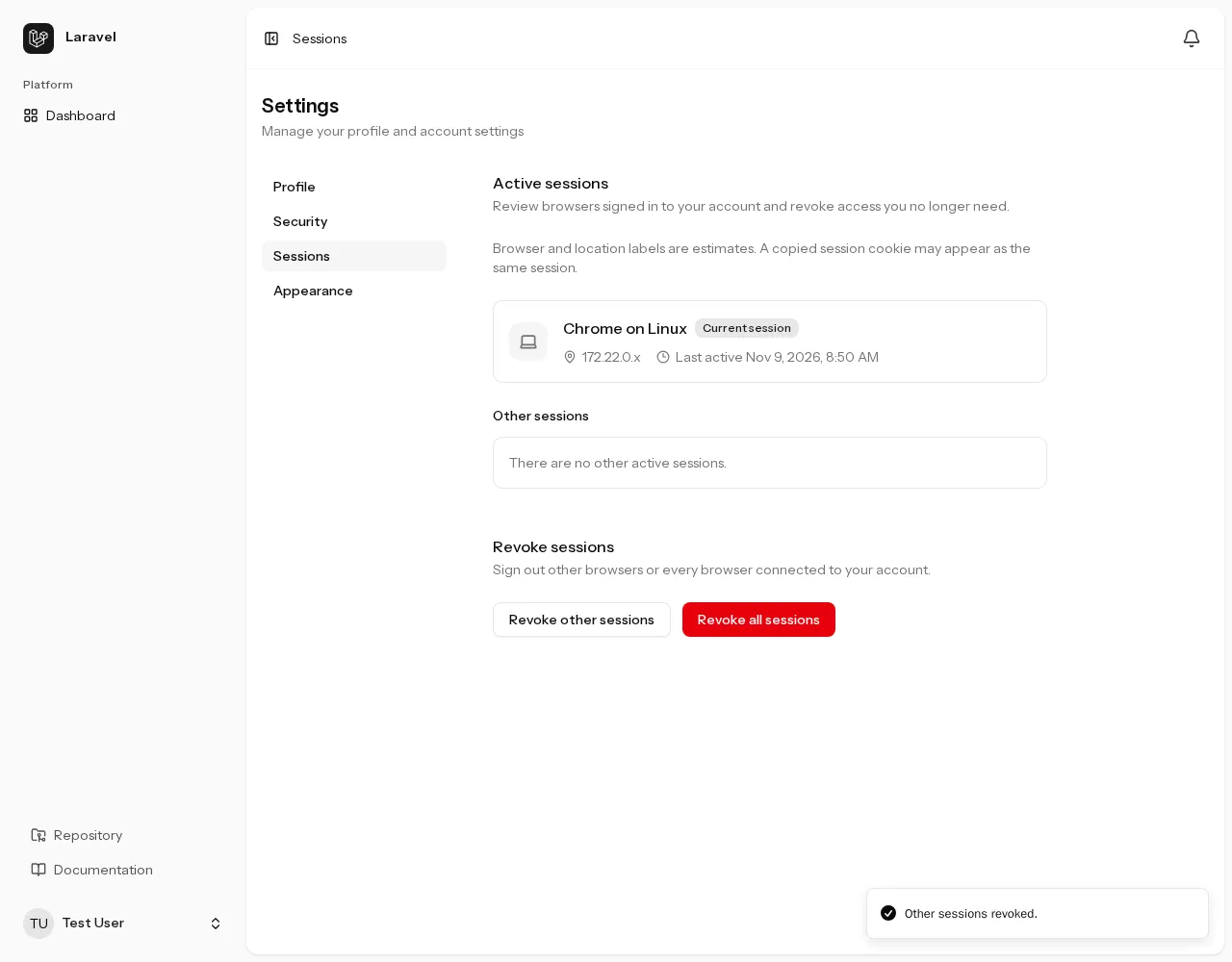
Check for “Other sessions revoked.” and “There are no other active sessions.”. You can continue using the current browser.
Revoking every session, including the current one
Section titled “Revoking every session, including the current one”Select “Revoke all sessions” to open “Revoke every session?”. This action also signs out the current browser.
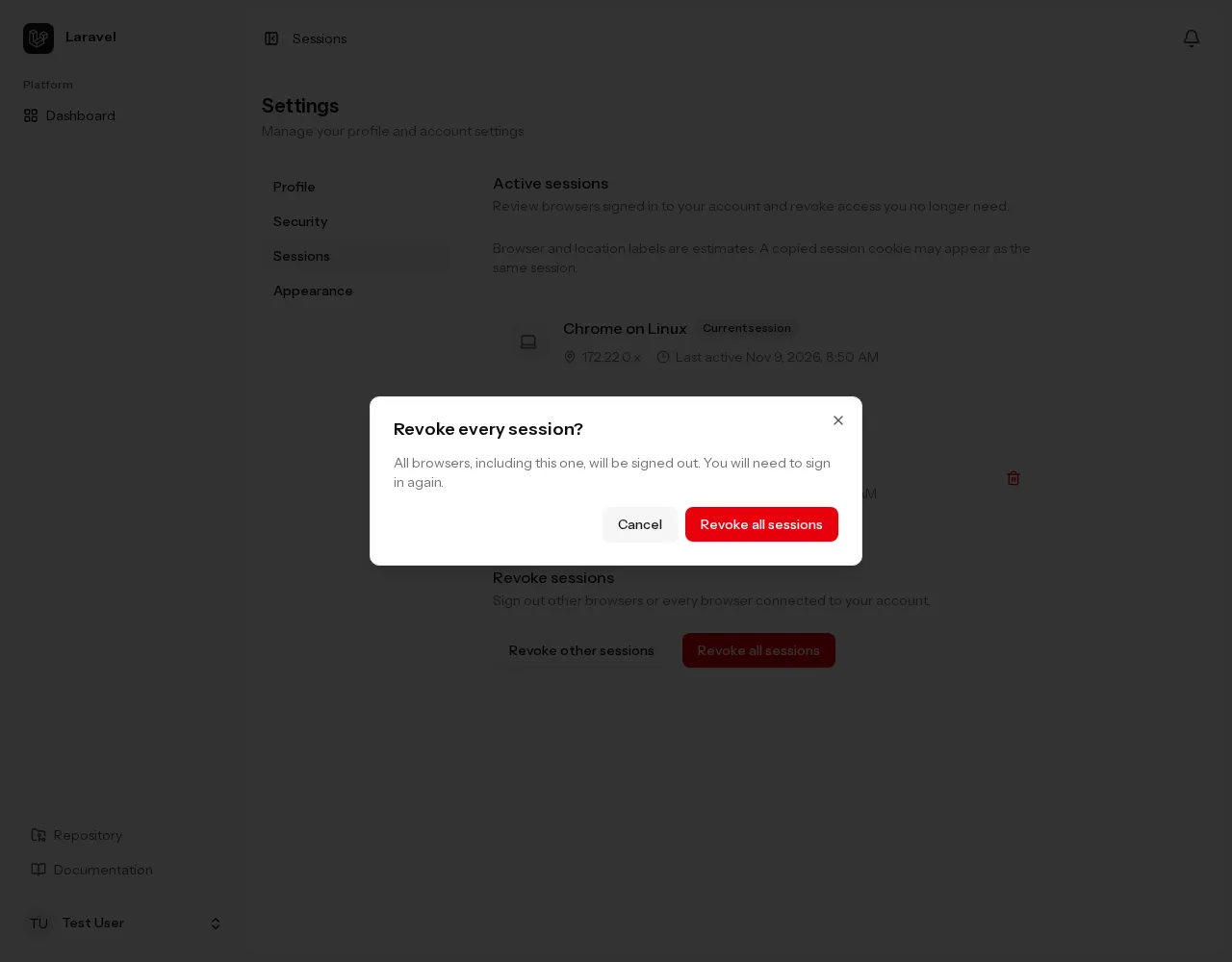
Confirm with “Revoke all sessions”. All sessions and “Remember me” sign-ins are invalidated. This browser is signed out and returns to the application’s home page.
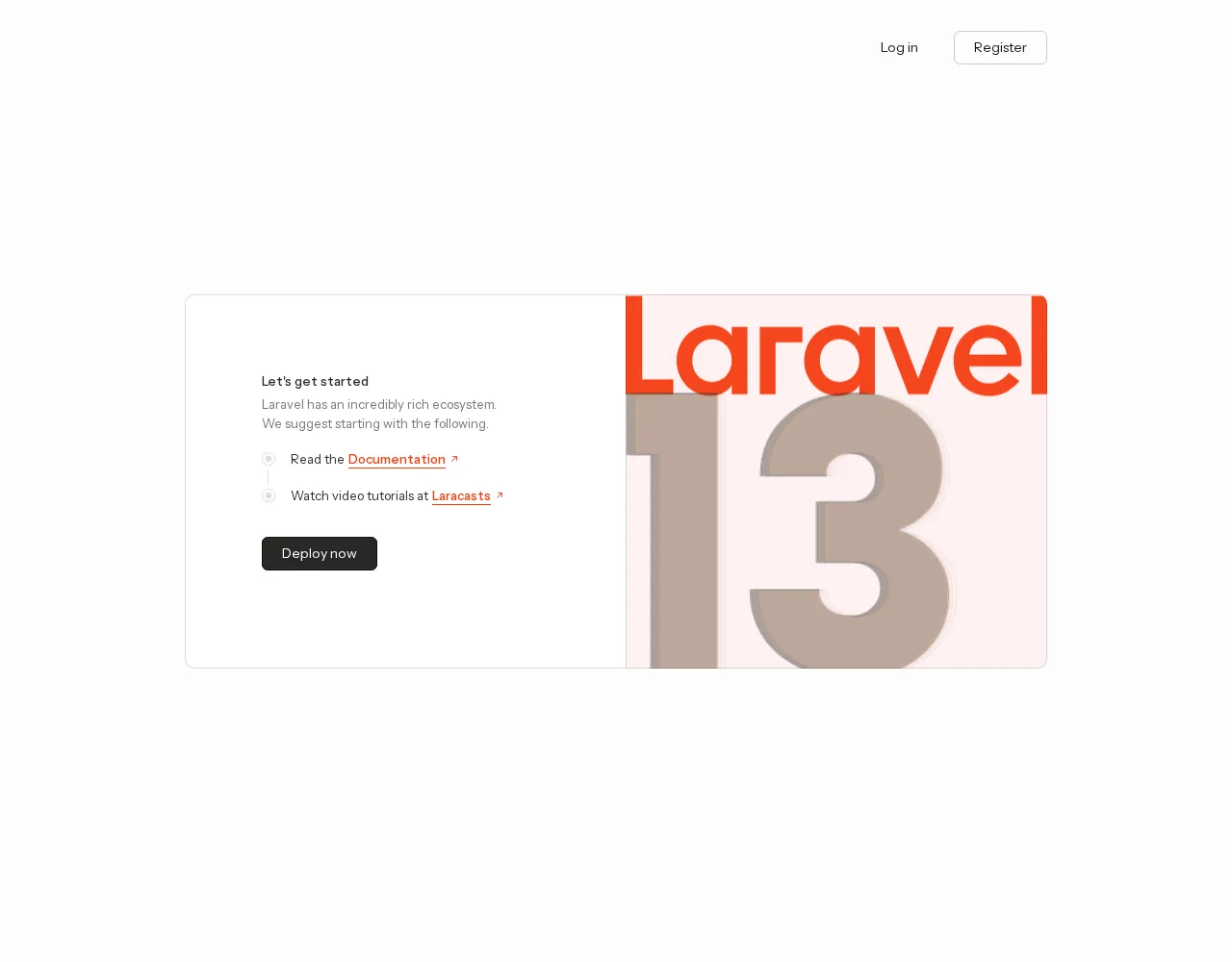
Opening session management again leads to login. Sign in again to continue.
Revoking sessions from the CLI
Section titled “Revoking sessions from the CLI”Operators with access to the application runtime and database can run security:revoke-sessions to revoke every session of a specified user. It requires SESSION_DRIVER=database.
There is no browser password confirmation. Target selection and confirmation happen in the terminal. Run commands from the project root; with Sail, replace php artisan with ./vendor/bin/sail artisan.
Selecting the user
Section titled “Selecting the user”Prefix an email address with email: or a user ID with id:. This example targets the local test@example.com account.
php artisan security:revoke-sessions email:test@example.comThe prompt shows the name, email, ID, and stored session count. In this example, user ID 1 had one stored session.
Revoke 1 session(s) for Test User (test@example.com, ID 1)? (yes/no) [no]:> yes
Revoked 1 session(s) for user ID 1.
Check the target and enter yes. The default is no: pressing Enter cancels and prints “No sessions were revoked.”. To select the same user by ID:
php artisan security:revoke-sessions id:1State after execution
Section titled “State after execution”The command deletes all stored sessions for the target and invalidates “Remember me” sign-ins. Unlike “Revoke other sessions” in settings, it cannot preserve a selected session. Browsers are asked to sign in again on their next request to an authenticated page.
In the demonstrated environment, both stored and active session counts were checked in the database and were 0 after execution. The operation does not immediately close an already-open browser page.
CLI counts include expired stored records; the settings list includes only active sessions, so counts can differ. Even with zero stored sessions, confirmation still triggers the “Remember me” reset.
Skipping confirmation
Section titled “Skipping confirmation”Use --force for automation or other cases that do not need the prompt.
php artisan security:revoke-sessions email:test@example.com --forceThis skips only confirmation. Selector format, user existence, and the database driver requirement are still validated.
Errors and partial results
Section titled “Errors and partial results”An invalid selector, unknown user, unsupported session driver, or unavailable storage produces an error and exit code 1. Success and cancellation at the prompt return 0.
If session deletion fails after “Remember me” has already been reset, the output reports that partial result. Inspect the message, fix the cause, and retry. Session revocation ends existing logins; it does not suspend the account or prohibit a fresh login with valid credentials.